
Before you can apply for a cannabis cultivation license, you will need to create an account on the Cultivation Licensing System.
From the Accela Home page, shown here, you can:
- Register for a new account
- Login to an existing account
- Search for active licenses
- Learn more about the system
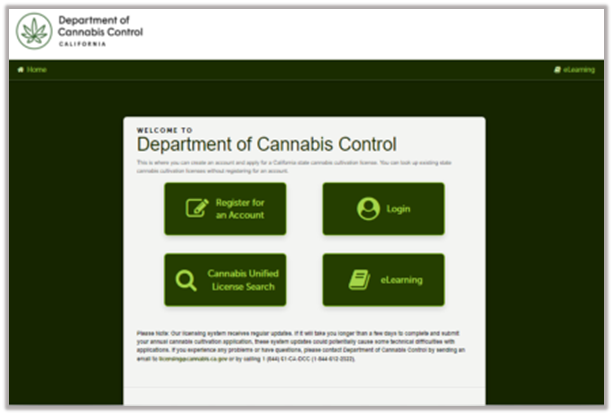
Begin by clicking the button in the center of the page labeled Register for an Account.
Login Information
Next, enter your Login Information, including a user name, email address, password, and a security question and answer.
- Enter your choice of a user name in the User Name field – 4 to 32 characters, including letters, numbers, and the special characters: (@ _ – .)
- Accurately enter your email address.
Note: One person, one email address. Remember to use the same email address used for registration throughout the application. For more guidelines on email addresses, refer to this guide: CLS email address guidelines
Selecting a password
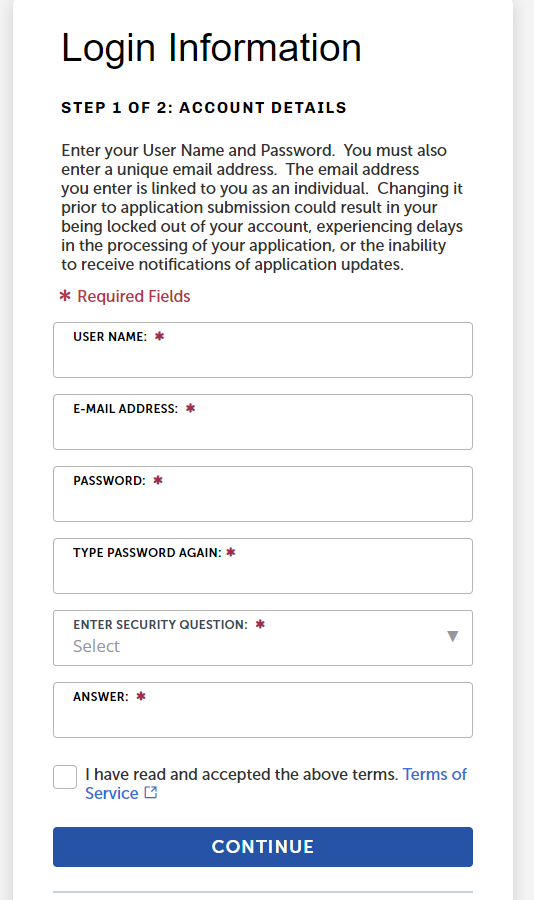
Enter your Password twice. Password requirements are:
- Minimum of 8-20 character(s)
- Must contain at least: 1 upper-case letter, 1 number, and 1 special character, such as: (? @ $ )
- Must not contain your Username or any of your previous 5 passwords
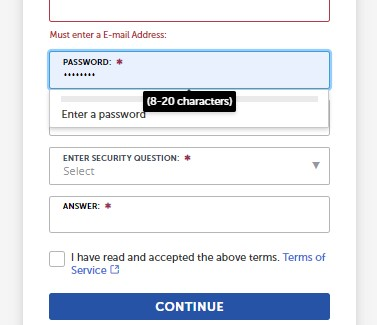
If your password violates these rules, you’ll see an error message specifying the problem.
Help text
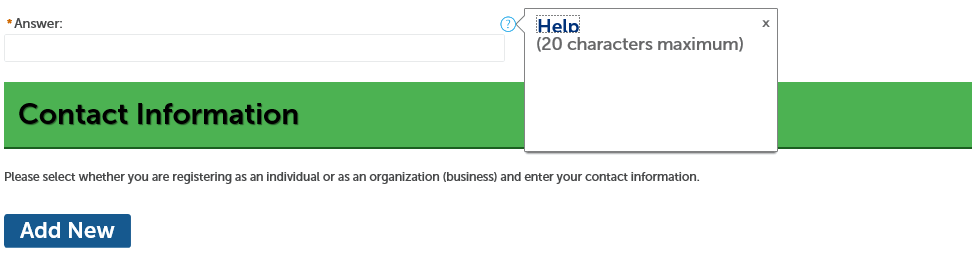
View Help text by clicking on a question mark icon. Click the X in the upper right corner to close the Help text.
Security Question
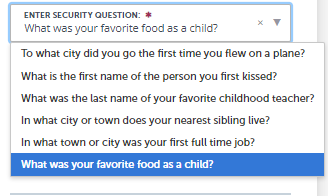
Select a question from the drop down. Enter the Answer field (case-sensitive). You can change your security question at any time.
Read terms of service and check the box to accept the above terms. Click Continue.
Note: We will ask you this Security Question if you need to reset your password. Your answer will be case-sensitive. If you cannot remember the answer, contact the Department of Cannabis Control at 844-61-CA-DCC (844-612-2322) to have your password reset and a temporary password sent to your email address on file. Additionally, you can email the department at info@cannabis.ca.gov to request a password reset.
Contact Details
Click the Individual button under Contact Details. The Contact Details window collects your personal contact information. All fields (with or without asterisk) on this screen are required – skipping any will result in delays.
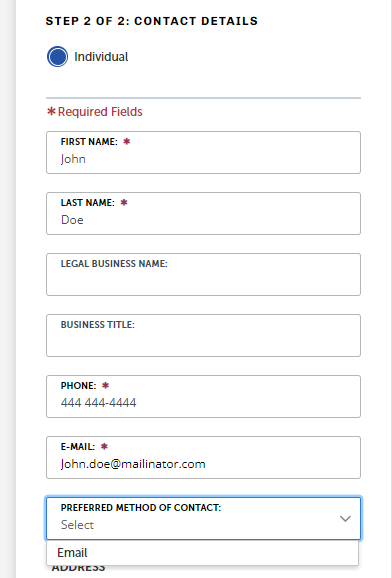
- Be sure your email matches your previous entry. Entering a different or incorrect email address here will cause an error in your application.
- Be sure to choose a Preferred Channel for communication from the dropdown list Email.
- The Country field determines phone number format, confirm it is set correctly for your phone.
Contact Addresses
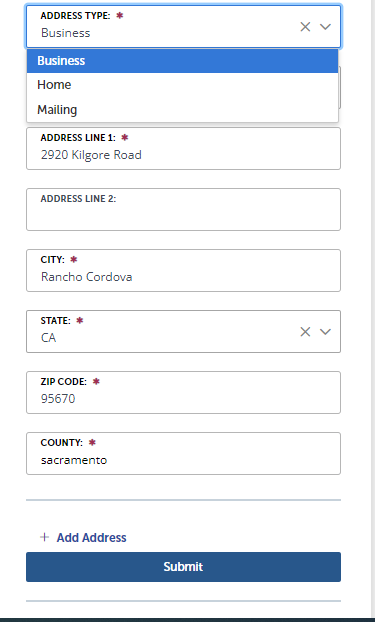
All three address types are required – Business (your business’s physical address), Home, and Mailing (where your business receives mail).
Note: Each address type must be entered, even if the addresses are the same.
Click Add Address after entering the first two addresses, then click Submit.
Account Created
You have now created an account and are ready to log in. A green success message displays at the top of the screen, inviting you to login.
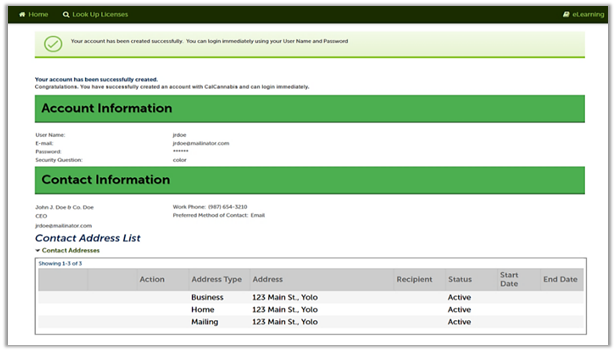
You have now created an account and are ready to log in. A green success message displays at the top of the screen, inviting you to login.
Continue to next article
-
CLS email address guidelines
Each person is uniquely identified by a name and an email address in the licensing system. Follow these email guidelines to ensure that email addresses are correctly associated with your account.